
Invoices
Turn your unbilled time into a PDF invoice and send it from the app.
Updated
Create an invoice
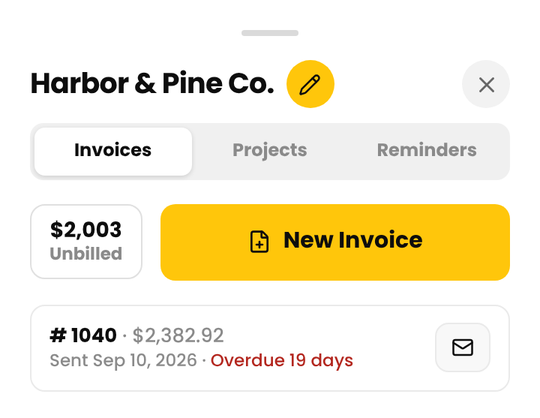
- Tap Clients, then the client, then the Invoices tab.
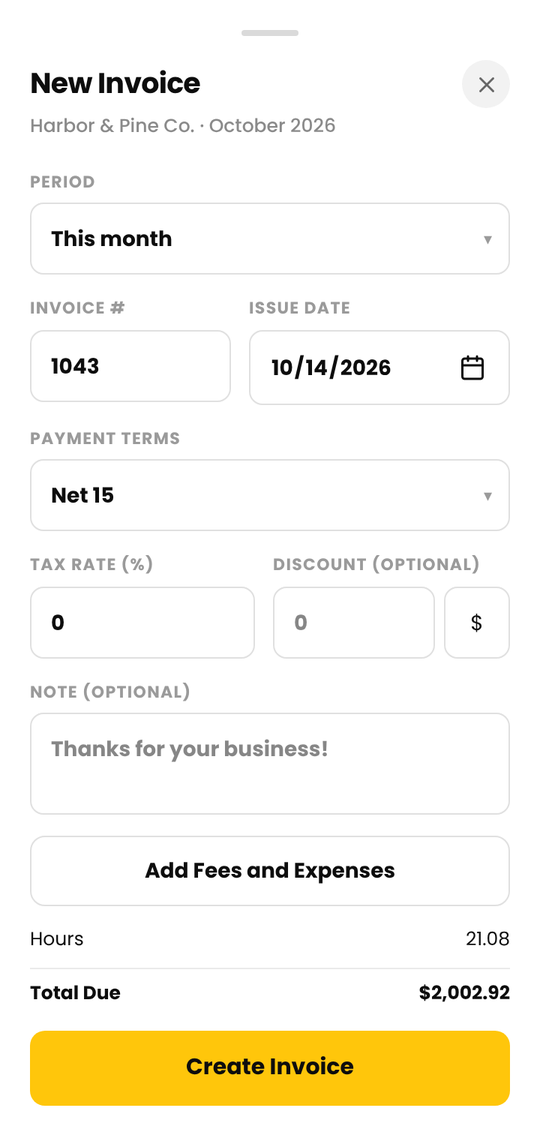
- Tap New Invoice. It starts on All unbilled, or choose last month, this month or a custom range. Each period shows its total, and Cruxy only offers periods that have something to invoice.
- Check the invoice number (we suggest the next one), the issue date and the payment terms (Due on receipt, Net 15, 30, 45 or 60).
- Set the tax rate, and add a discount or a note if you need to.
- Under Fees and expenses, untick any charge you want to leave off, or tap Add Charge.
- Tap Create Invoice.
The client needs an hourly rate above 0 to be invoiced. When you close the sheet, you go back to the client.
See what's unbilled
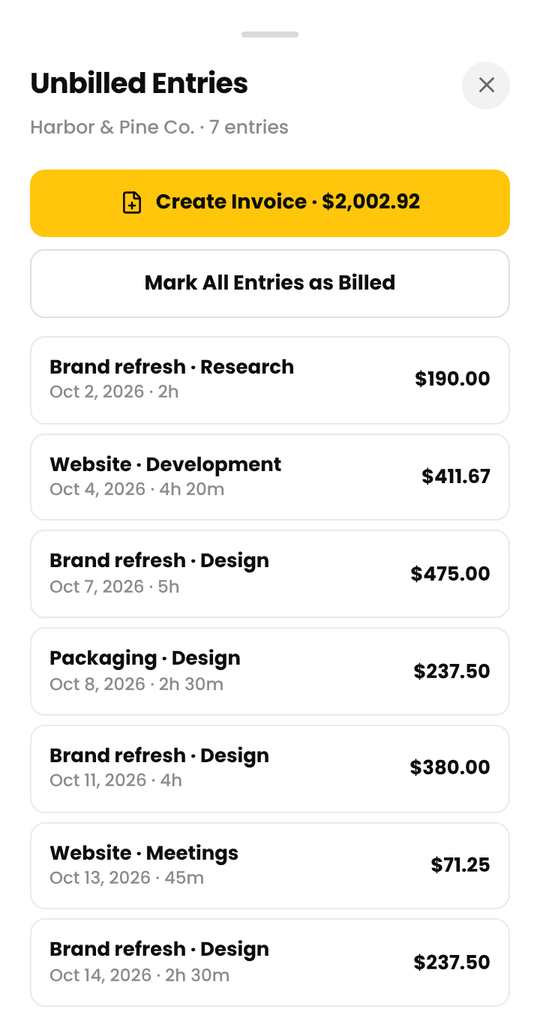
The client's Invoices tab shows how much is unbilled. Tap that amount to open Unbilled Entries, a list of the time and charges that aren't on an invoice yet.
- Tap a row to open that entry.
- Create Invoice shows the unbilled total. The invoice itself can differ a little, for example with tax or retainer charges.
- Mark All Entries as Billed marks all the time as billed without making an invoice. Use it for work you invoiced outside Cruxy. Fixed fees and expenses are marked billed when they're put on an invoice.
What goes on an invoice
- Billable time in the period. Non-billable entries stay off, and so does time already on another invoice.
- Lines are grouped by project, task and rate. If a rounding setting applies, each line is rounded, not each entry.
- Tax applies to time and to any taxable charges. A discount comes off before tax.
- If the period has time in more than one currency, Cruxy asks you to invoice them separately.
An invoice is a snapshot. Later changes to the client, your settings or the entries don't change it. If you need a change, delete the invoice and create it again.
Only clients and periods with something unbilled can be chosen, so you never end up with an empty invoice. With a custom range, Cruxy shows the items and total for those dates, or tells you there's nothing unbilled in them.
View an invoice
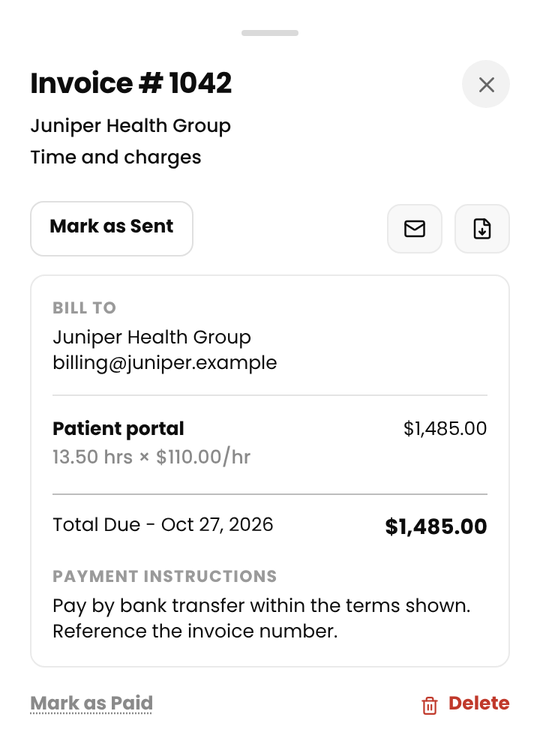
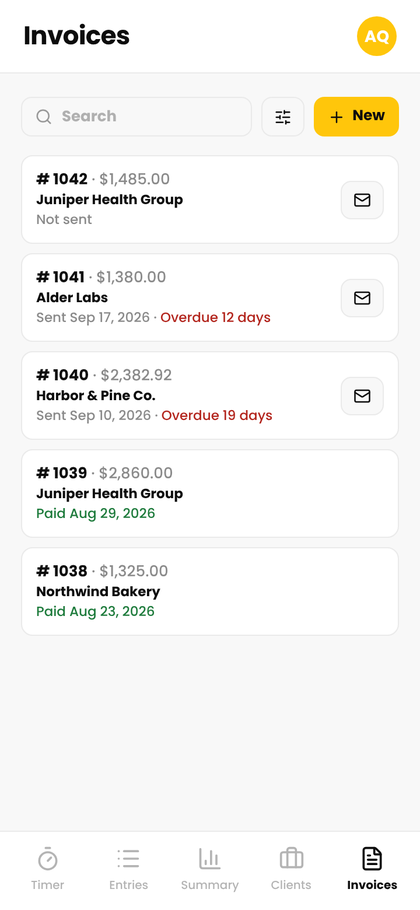
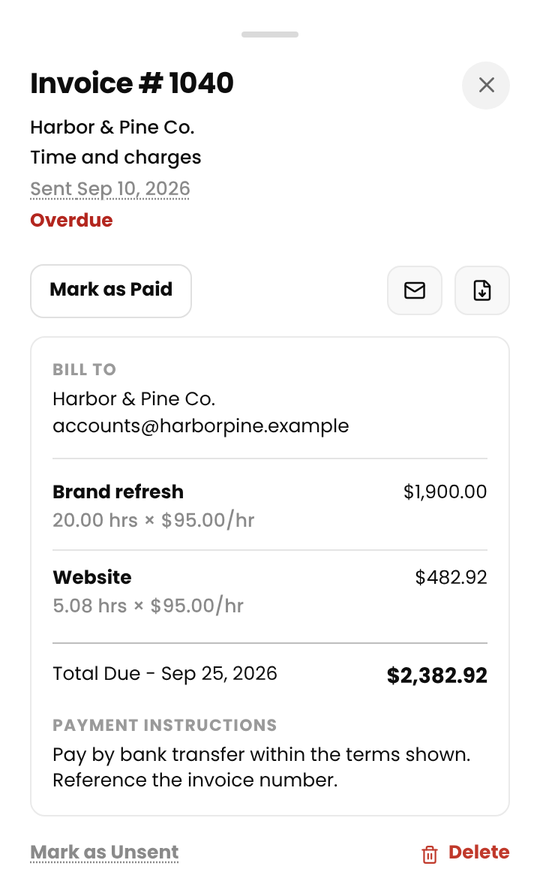
Tap an invoice in the client's list to see Bill To, the lines, the totals, your payment instructions and notes. In the list, each invoice shows Not sent, Sent with the date, Overdue with how many days, or Paid with the date.
Email an invoice
- Tap the email icon, either in the invoice list or on the invoice. It shows on invoices that are Not sent or Overdue.
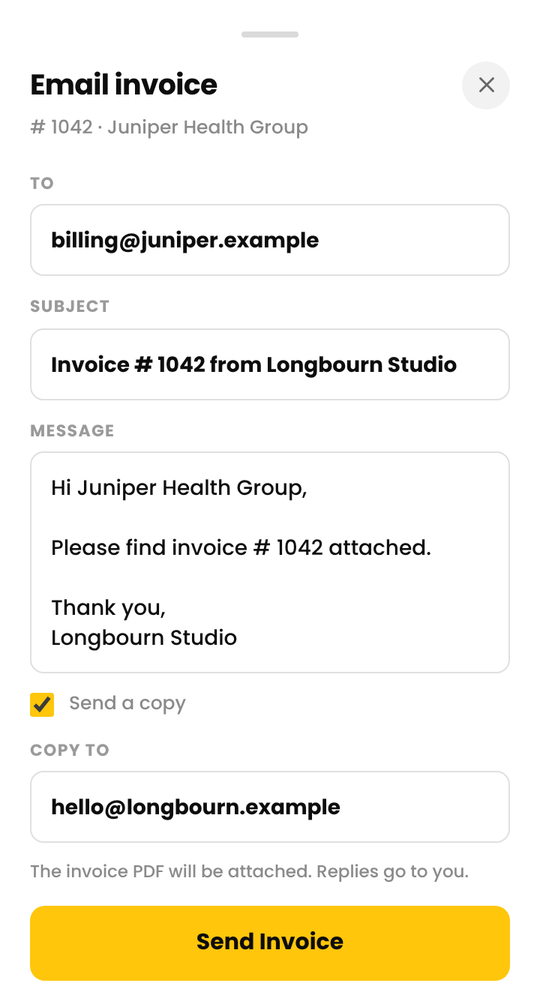
- Check the To address. It comes from the client's billing email.
- Edit the subject and message if you like. A copy to yourself is on by default.
- Tap Send Invoice.
The invoice goes as a PDF attachment. Replies come to you. Emailing marks the invoice as sent.
Free includes 3 emailed invoices or reminders a month, renewing on the 1st. Pro has no monthly limit. See Free vs Pro.
Mark an invoice sent or paid
- Mark as Sent when you've sent it yourself.
- Mark as Paid when the money arrives. A message offers Undo in case you tapped it by mistake.
- Mark as Unpaid or Mark as Unsent reverses the status.
- Tap the underlined sent or paid date to change it.
An invoice is Overdue when it's been sent, isn't paid and is past its due date. An invoice due on receipt becomes overdue one business day after the day it was sent.
Cruxy doesn't take payments from your clients. You get paid however your payment instructions say.
Send a reminder for an overdue invoice
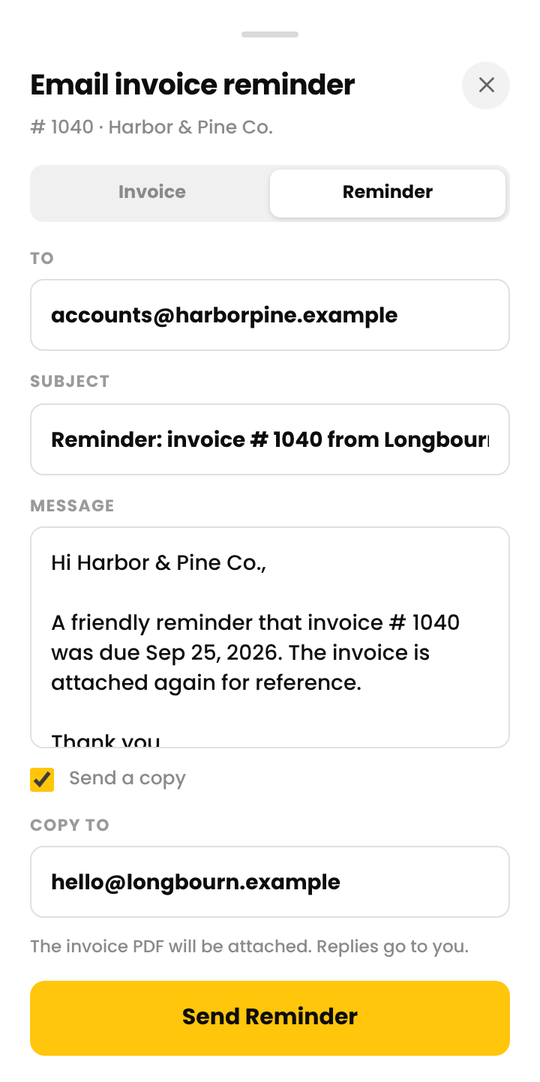
Open an overdue invoice and tap the email icon. Switch to Reminder, check the message and tap Send Reminder. A manual reminder counts toward your free monthly emails.
Pro can send reminders automatically. See Automatic reminders to your clients.
Delete an invoice
Open the invoice and tap Delete. The time and charges on it count as unbilled again. This can't be undone, and there's no void. Deleting doesn't unsend an email your client already received.
Invoices can't be edited after they're created. To change one, delete it and make a new one.